
WAVLINK USB 3.0/USB C to HDMI Universal Video Adapter
4.4Editor score
Supports up to six monitors total
Includes audio input and output ports
Compatible with ChromeOS and Windows
This guide compares the top Displaylink Adapter models for Mac and Windows users seeking dual 4K displays with reliable connectivity and driver support.
Finding the right Displaylink Adapter can transform your single-screen laptop into a powerful dual-monitor workstation. These devices bypass native video limits on Macs and Windows PCs using advanced compression technology to deliver crisp visuals across multiple screens.
We analyzed ten top-rated models based on compatibility, resolution support, build quality, and user feedback. Each entry offers unique features like charging ports or hybrid cables. Our goal is to help you identify the perfect fit for your specific workflow and device setup.
Every pick highlights key strengths and potential limitations to guide your decision. Note that availability and pricing may shift due to supply changes. Check current listings before purchasing to ensure you get the best value for your investment in productivity.
4.4Editor score

4.5Editor score

4.8Editor score
The following table provides a side-by-side look at the specifications and core capabilities of each recommended Displaylink Adapter. Use this overview to quickly compare resolution support, port types, and system compatibility before diving into detailed reviews.


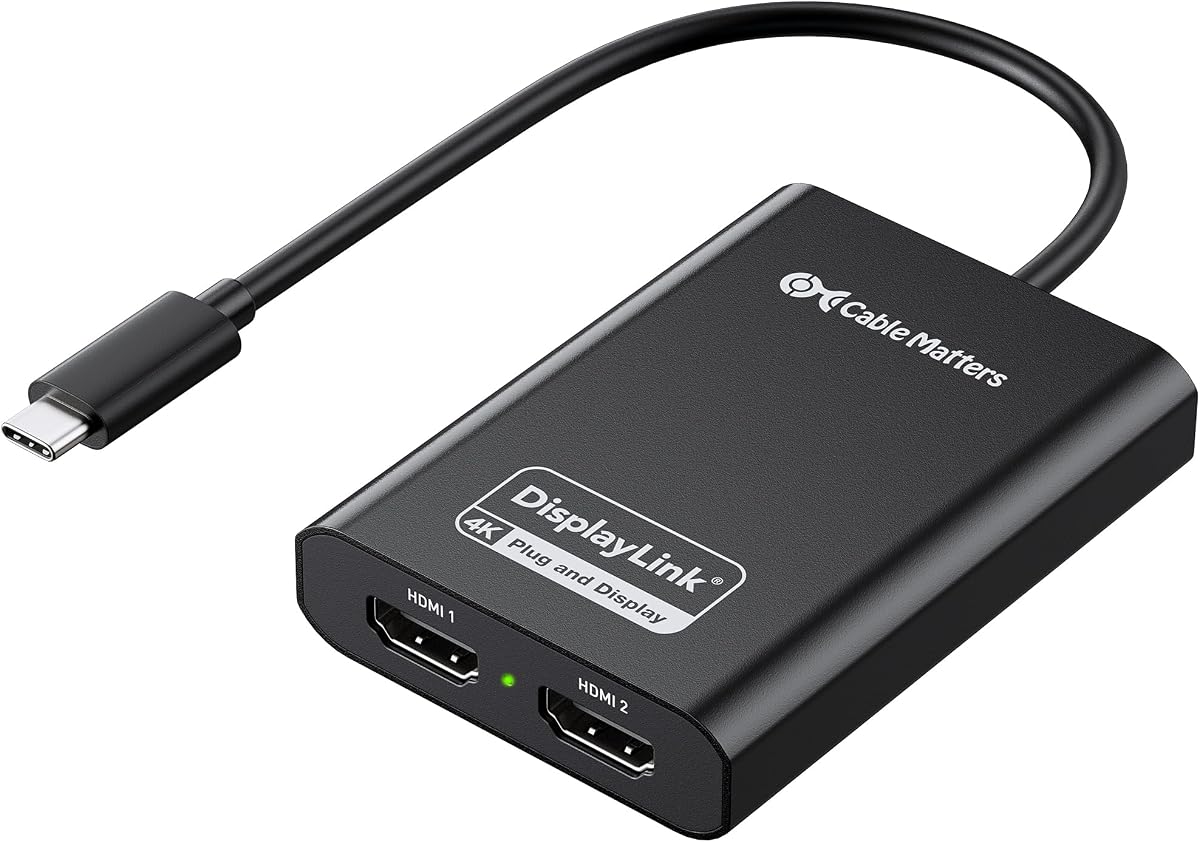

This adapter stands out as a top choice for users needing reliable dual 4K display support. It leverages DisplayLink technology to bypass native port limits on many laptops. With a 4.5 rating, it proves effective for daily multitasking and coding environments.
We may earn a commission when you buy through this link, at no additional cost to you.
The flexibility to connect via USB-C or USB-A makes it versatile for older and newer laptops alike. The integrated USB-A adapter ensures you never lose a connector when switching devices. This adaptability saves costs and reduces clutter on your desk.
While it excels at productivity, it lacks support for high-refresh gaming or media streaming due to HDCP limitations. These trade-offs are acceptable for business users focused on spreadsheets and web browsers. The performance remains stable under typical office loads.
Ideal for IT departments deploying standardized setups across Windows and ChromeOS systems. The lifetime support ensures long-term reliability for your workstation. We recommend this for anyone prioritizing connection options and vendor reliability over gaming performance.
This model is highly suited for those who need consistent performance across different device types.
The included USB-A adapter allows connection to older laptops while maintaining support for modern Thunderbolt ports.
Optimized for office apps and coding, this adapter ensures stable display output without needing extra hardware.
We may earn a commission when you buy through this link, at no additional cost to you.
Affordability meets versatility in this WAVLINK model. It is a strong budget option for those needing more than one external screen. The 4.4 rating reflects reliable performance for standard office tasks and general computing needs.
We may earn a commission when you buy through this link, at no additional cost to you.
You can connect up to six monitors on PCs by using one adapter per screen. This scalability is rare in this price range. The audio ports add convenience for headsets without requiring extra dongles.
Resolution caps at 1440p which may limit ultra-high definition work. However, most users will not notice this in typical office environments. The LED indicator helps confirm connection status quickly during setup.
Best for home offices or small businesses on a strict budget. It handles ChromeOS systems well which is great for education sectors. This adapter delivers value without sacrificing core display extension features.
It remains a practical choice for expanding workspace without heavy investment.
Users can extend their workspace significantly by adding multiple adapters for up to six total displays on supported PCs.
Built-in microphone and earphone ports simplify connections for conferencing calls without extra peripherals.
We may earn a commission when you buy through this link, at no additional cost to you.
This premium adapter excels in build quality and performance for Apple users. With a 4.8 rating, it solves Mac display limits effortlessly. The aluminum body and high-power delivery make it a comprehensive docking solution.
We may earn a commission when you buy through this link, at no additional cost to you.
It supports true dual DisplayPort 4K 60Hz output which is great for modern monitors. The 100W charging ensures your MacBook stays powered during heavy use. This eliminates the need for separate power bricks on your desk.
While it requires DP cables for HDMI displays, this adds value for high-refresh setups. Users should note that driver installation is necessary for first-time use. The heat dissipation keeps the device cool even under load.
Perfect for professionals using MacBook Pros or Airs with M-series chips. It transforms your laptop into a complete workstation with ample peripheral support. We recommend this for Mac users needing maximum connectivity and power.
It is an exceptional choice for premium productivity setups.
The 100W PD port allows you to charge your device while driving dual high-resolution displays simultaneously.
Crafted from aluminum alloy this adapter ensures durability and effective thermal management during operation.
We may earn a commission when you buy through this link, at no additional cost to you.
This adapter combines HDMI outputs with charging in a compact aluminum body. It is ideal for users needing a clean setup without extra cables. The 4.3 rating highlights consistent performance for general work and multitasking.
We may earn a commission when you buy through this link, at no additional cost to you.
You get two 4K 60Hz displays plus three USB-A ports for peripherals. The 100W charging keeps your laptop powered during long sessions. This makes it a great travel companion for professionals on the go.
HDCP content playback is not supported which limits streaming options. For office use though the extended workspace is unmatched. Ensure you install the driver for macOS or Windows to enable full functionality.
Best for users who want a balance of video and peripheral connectivity. It fits well in laptop bags and offers reliable cooling. We recommend this for those prioritizing design and power delivery features.
It remains a strong contender for versatile daily use.
Combine dual video outputs and peripheral hubs with fast charging in a single portable unit.
The lightweight aluminum case allows for easy transport without adding bulk to your workspace.
We may earn a commission when you buy through this link, at no additional cost to you.
This model features a unique hybrid cable that simplifies connections for various devices. It is designed for Mac users who need dual screens from a single port. The 4.4 rating reflects user satisfaction with its reliability.
We may earn a commission when you buy through this link, at no additional cost to you.
The hybrid cable supports both USB-C and USB-A natively. This means fewer dongles are needed when switching between old and new systems. It is excellent for mixed device environments in shared offices.
While it is robust for video output, it does not support gaming or streaming apps. Users must install the driver for initial setup. The 12-month warranty adds peace of mind for new buyers.
Best for Mac users wanting easy connectivity and solid dual-screen performance. It delivers smooth workflows for web apps and documents. We recommend this for its convenient cable design and compatibility.
It offers a practical solution for modern hybrid work setups.
The hybrid cable design eliminates the need for separate adapters when moving between USB-C and USB-A ports.
Specifically tuned for M-series Macs to bypass native display limitations effectively.
We may earn a commission when you buy through this link, at no additional cost to you.
MacWorld recognized this adapter for solving Mac display limits. It is a top choice for IT departments needing reliable deployment across many systems. The 4.3 rating confirms its effectiveness for professional use.
We may earn a commission when you buy through this link, at no additional cost to you.
You get two 4K 60Hz HDMI outputs from one port. The lifetime support team in North America ensures quick help when needed. This is a crucial feature for businesses requiring consistent uptime.
Mac users must allow specific permissions during setup which can be tricky initially. However once configured it runs smoothly. It is not intended for watching movies due to HDCP restrictions.
Best for hybrid office setups using MacBook Pro or Air. It delivers stability that matches enterprise demands. We recommend this for users who value strong vendor support and reliability.
It is a dependable choice for expanding Mac workstations.
Built to meet IT deployment demands with stable connections and long-term support guarantees.
Awarded Best DisplayLink Adapter for MacBook Neo highlighting its effectiveness for Apple users.
We may earn a commission when you buy through this link, at no additional cost to you.
This mini dock is perfect for small workspaces needing extra connectivity. It includes Ethernet which is rare for mini hubs. The 4.4 rating shows high satisfaction among users needing reliable wired networking.
We may earn a commission when you buy through this link, at no additional cost to you.
It offers dual DisplayPort 4K outputs plus a fast Ethernet connection. The attached cable is short which reduces clutter but limits reach. This makes it ideal for desktop setups where port strain matters.
The compact form factor ensures it does not take up desk space. However there is no USB charging port included. Users should ensure their laptops have separate power sources during use.
Best for Chromebooks or laptops lacking Ethernet ports. It solves both video and networking needs in one small device. We recommend this for users needing wired internet stability.
It is a smart choice for minimalists needing extra ports.
The built-in Gigabit Ethernet port ensures stable internet connections without Wi-Fi interference.
Its small size fits easily on crowded desks without obstructing keyboard or mouse movement.
We may earn a commission when you buy through this link, at no additional cost to you.
This adapter is a powerhouse for Mac users needing dual DisplayPort screens. Its high rating reflects stable performance and build quality. It bypasses macOS restrictions seamlessly for extended workflows.
We may earn a commission when you buy through this link, at no additional cost to you.
The 100W PD keeps your notebook charged while driving visuals. Three USB-A ports offer extra hub functionality for accessories. This makes it a complete station for travel and office use.
You must have DP cables or adapters if your monitors use HDMI. The driver install ensures full compatibility with newer Macs. These steps are minor compared to the benefits of added screens.
Best for power users and designers needing reliable visuals. It handles multi-tasking without screen flicker or blackouts. We recommend this for Mac owners wanting maximum flexibility.
It delivers premium performance for demanding workloads.
Charge your MacBook fully while using external displays to avoid battery drain during work.
Unlike basic splitters this adapter supports true independent desktops for better productivity.
We may earn a commission when you buy through this link, at no additional cost to you.
This model focuses on data protection with its DL-chip encryption. It is ideal for businesses handling sensitive information daily. The 4.6 rating shows users trust its performance and security features.
We may earn a commission when you buy through this link, at no additional cost to you.
The encryption ensures secure corporate use for shared workstations. You get dual 4K outputs for high-resolution work. Support is available quickly through phone or email channels.
It does not support Linux or iOS systems which limits some users. Driver installation is needed for initial setup. These requirements ensure the highest level of device management.
Best for enterprise users needing security and reliable video. It protects data during daily operations effectively. We recommend this for office environments prioritizing safety.
It offers peace of mind for secure workflows.
Advanced encryption safeguards sensitive data when using external displays in corporate settings.
Quick access to technical support ensures minimal downtime during installation or use.
We may earn a commission when you buy through this link, at no additional cost to you.
This adapter is DisplayLink Certified ensuring it meets strict quality standards. It is a solid pick for those needing true extended displays on Macs. The 4.0 rating reflects average performance depending on CPU load.
We may earn a commission when you buy through this link, at no additional cost to you.
It removes 30Hz flicker common with basic adapters. The aluminum housing keeps it cool during long work sessions. It is a reliable option for daily office tasks and web browsing.
Performance varies with CPU power so newer machines work best. You must allow screen recording permissions on macOS. These minor steps ensure the adapter runs correctly for your needs.
Best for users wanting certified reliability without extra cost. It works well with most modern laptops and systems. We recommend this for standard office setups.
It provides a steady and certified solution for dual screens.
DisplayLink certification guarantees compatibility and consistent performance across supported devices.
The durable aluminum case dissipates heat to maintain stable display output over time.
We may earn a commission when you buy through this link, at no additional cost to you.
Selecting the right adapter requires understanding your specific workflow and hardware constraints. This guide breaks down the critical factors you should consider before buying.
Most DisplayLink adapters require specific driver support for different operating systems. Windows and ChromeOS often support plug-and-play while macOS users must install software and grant permissions. Always check if your OS version is listed in the compatibility chart to avoid issues.
Ensure your operating system version is supported by the adapter to prevent driver conflicts.
Most adapters support 4K at 60Hz but some may cap at 30Hz or 1080p. Check the specs for your monitor requirements especially if you need smooth motion for design work. Higher resolutions may require newer USB standards for adequate bandwidth.
Verify the supported resolution and refresh rate to match your monitor capabilities.
Adapters come with USB-C or USB-A connectors and may include extra USB ports. Consider if you need charging power delivery or additional ports for a and drives. Matching your laptop ports avoids the need for extra dongles.
Choose an adapter with ports that match your laptop and peripheral needs.
Some adapters use HDMI while others use DisplayPort connectors. Knowing which cable your monitors need ensures you do not buy the wrong interface. Converters may be required if your monitor type differs from the adapter ports.
Confirm whether you need HDMI or DisplayPort outputs for your existing monitors.
Many modern adapters include USB-C Power Delivery to charge your laptop while in use. This reduces cable clutter by combining video and power into one connection. Look for models with at least 65W or 100W PD for full charging speeds.
Look for Power Delivery support to keep your laptop powered during long work sessions.
Video adapters generate heat during compression which requires good cooling. Aluminum housings dissipate heat better than plastic. Ensuring the build quality is premium helps prevent thermal throttling over time.
Prioritize aluminum housings to ensure effective cooling and long-term reliability.
Driver issues can occur so strong customer support is essential. Brands offering lifetime support or long warranties provide peace of mind. Check if the company has a dedicated tech team to help with setup.
Choose brands with strong support policies to resolve driver issues quickly.
Adapters vary by focus such as productivity or security. Corporate users might want encryption features while others need multi-monitor support. Match the model to your daily tasks like coding or document work.
Select an adapter designed for your specific daily workflows to maximize utility.
Begin by installing the DisplayLink driver from the manufacturer website. Reboot your computer after installation to ensure the driver loads correctly. This step is essential for macOS and Windows to recognize the new displays.
Connect the adapter to a USB 3.0 or Thunderbolt port on your laptop. Use high-quality HDMI or DisplayPort cables to ensure stable video transmission. Arrange your monitors in Display Settings to match their physical positions.
Avoid bending the adapter cable excessively to prevent internal wire damage. If the adapter feels hot during use allow it to cool down before packing. Regularly update drivers to maintain compatibility with new OS versions.
Yes most adapters require drivers to function properly. Windows and ChromeOS often handle this automatically but macOS needs manual setup. Check the product documentation for download links to ensure correct installation.
No these adapters do not support HDCP protected content. Streaming services like Netflix or Hulu will block playback on these displays. Use the laptop screen for media while using external screens for work.
No they are not recommended for gaming. The compression technology introduces latency that disrupts gameplay. Use these for productivity tasks like spreadsheets or coding instead.
Many adapters support dual monitors but some allow more. Always check the specs for maximum monitor count. Each additional screen requires sufficient USB bandwidth.
Most models are safe but some offer extra encryption. Enterprise versions may include DL-chip technology. Ask vendors about specific security certifications if you need extra protection.
USB 3.0 or Thunderbolt is required for 4K at 60Hz. USB 2.0 ports may limit resolution to 1080p. Check your laptop ports to ensure they match the adapter specs.
Yes newer models support Apple Silicon like M1 or M2. However you must install DisplayLink Manager on macOS. Verify compatibility lists before purchasing for M-series devices.
Adapter performance may drop on slower ports like USB 2.0. You will likely face lower resolutions or flickering. Consider upgrading your laptop if high-quality output is needed.
We reviewed ten top options offering dual 4K displays for various users. Plugable models stand out for reliability while ACASIS leads in premium build. Budget choices like WAVLINK remain effective for general productivity tasks.
Focus on your specific needs like macOS support or power delivery. Security-focused buyers should look for encrypted models. Ensure you install drivers to maximize performance from your chosen adapter.
Prices and availability change frequently across online stores. Check current listings before purchasing to secure the best value. These adapters provide long-term value for enhancing your workspace efficiency.